Desktop app
Your company's assistants in a desktop app.
Lynxby Desktop is a small chat app for the deployment you already run. You sign in with your existing account, and the server sends the assistants and tools your role allows. Each answer shows the model and the passage it used. Provider keys and permissions never live on the machine.
0
API keys, provider accounts or model settings on the device
1
sign-in in your own browser, with your second factor and single sign-on
3
builds from one commit: Linux, Windows and macOS
1
organisation per grant, chosen before you approve
Your server makes the decisions.
The app shows what your server sends and keeps the one permission it was given. Your server decides who you are, what you may reach, which model runs and what is redacted.
On the laptop
The window
Shows assistants, answers and sources. It holds one grant that only your account can read, and stores nothing else.
In your browser
The sign-in
Your password, second factor and single sign-on stay here. The app never sees them and cannot ask for them again.
Your deployment
The decisions
Which assistants exist for you, which tools you may call, which model answers, what is redacted, and what is written to the record.
Your deployment reaches your model providers and your systems with your own keys and contracts. The app can't reach either of them.
-
1 · Approve once
The button opens your browser on the deployment's consent page. You choose the organisation the connection acts in, then click Allow. The code comes back to a listener on
127.0.0.1, bound to the request that started it. -
2 · The list is the permission
Assistants and tools arrive already filtered by the same policies the browser uses. An assistant you may not use doesn't appear. A refused call comes back as a
403with a reason, so you never get an empty screen. -
3 · Ask
Your message goes to your deployment. Masking, the knowledge search, the model call and the tools all run there, and the answer streams back as it is written.
-
4 · The receipt stays
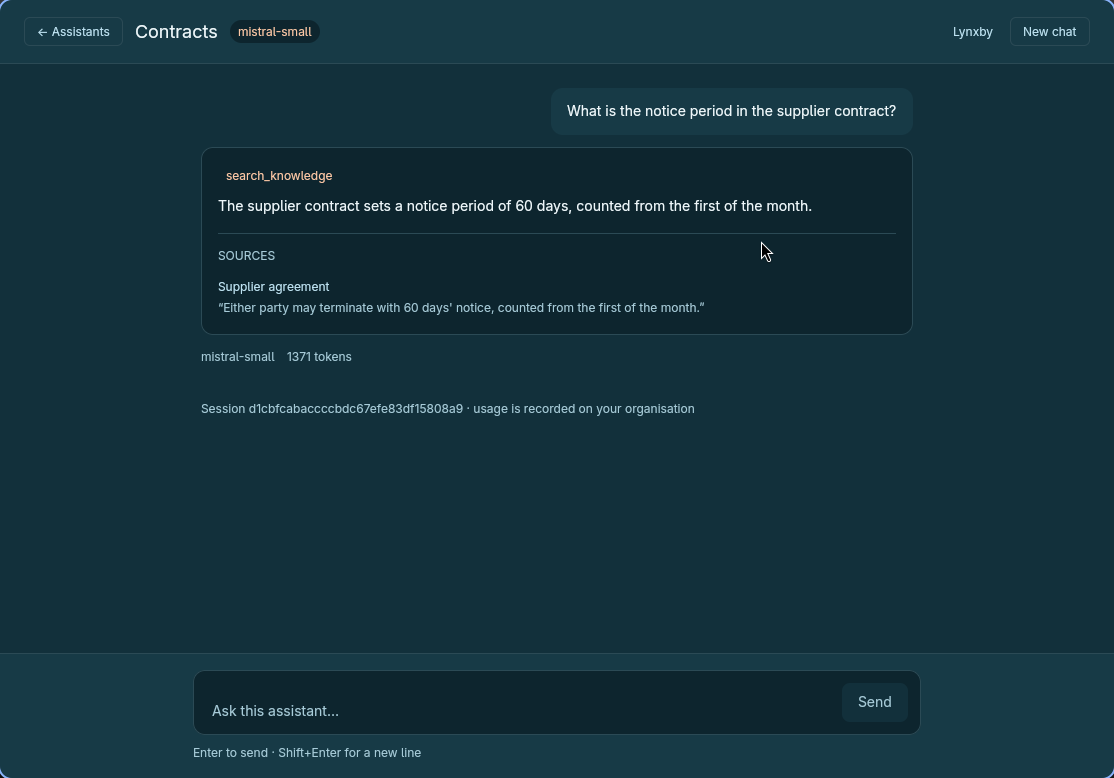
The reply is stored with its model, its tokens and the passages it cited. The window shows them under the answer, and the record keeps the rest.
You sign in through your browser.
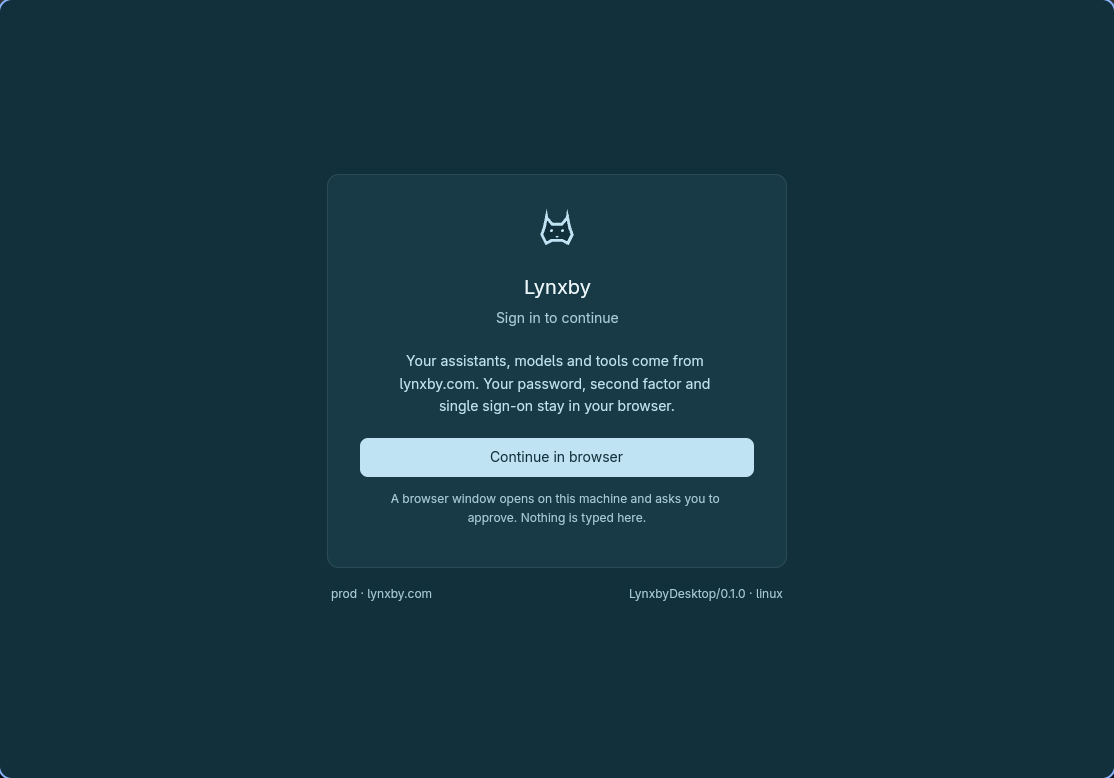
The app has no password field, token box or provider key. It opens your system browser, the deployment asks you to sign in there, and a code comes back on a loopback address that only this attempt listens on.
- A sign-in can't be replayed. The challenge is generated per attempt; a code from another attempt is refused.
- One organisation per grant. If you belong to several, the deployment asks which one before the consent page, and a grant without a choice is refused.
- Stored where only you can read it. The grant is stored per deployment in your user data directory, and only your account can read it. A staging sign-in is never sent to production.
- Revocable from the browser. Revoke it under API tokens and the next call fails. The app goes back to this screen.
Check each answer in the app.
The chat works like Lynxby in the browser: instructions, knowledge and tools per assistant, a model chosen by your routing, and a receipt on every turn. The desktop app also shows where the answer came from on the same screen.
- Sources under the answer. The documents and passages the deployment retrieved appear with the answer, so you don't have to look in a log.
- Tools as they run. A tool that ran appears above the answer, so a figure that came from a connector isn't mistaken for something the model knew.
- The model and the tokens. Each turn shows the model that wrote it and how many tokens it used. Both come from the reply; the app doesn't guess them.
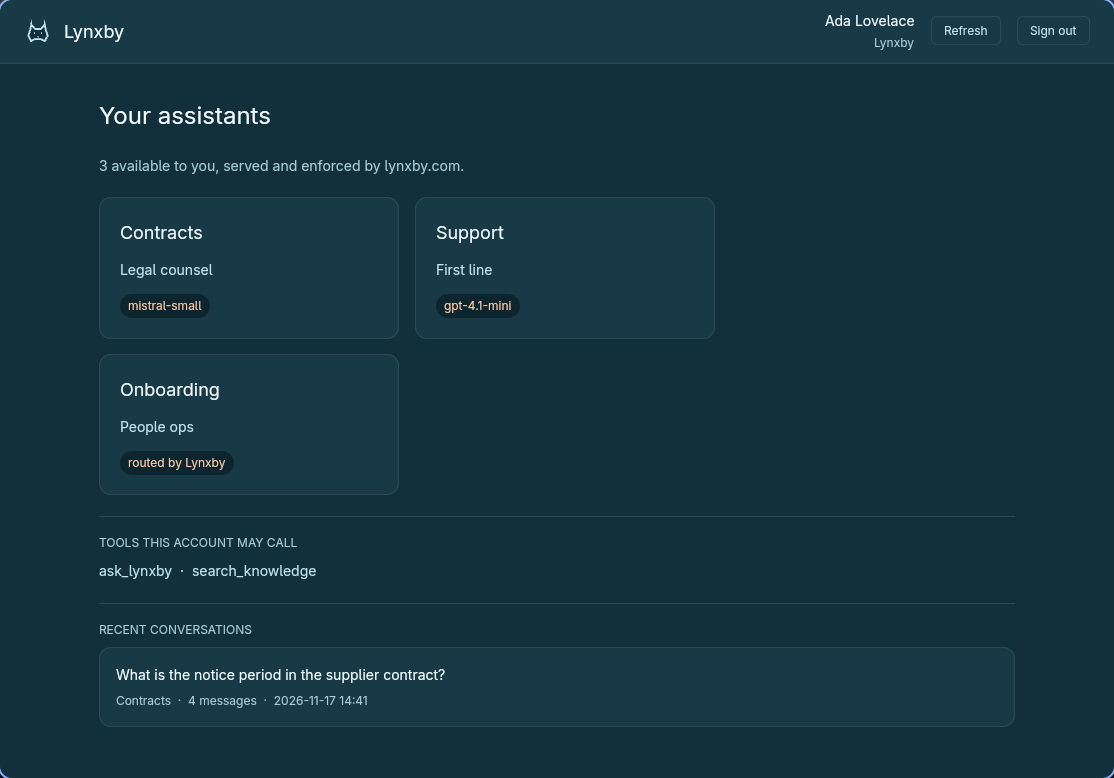
- Conversations that resume. Recent conversations come from the deployment's own history. Opening one continues that session, so the next question has the earlier one as context.
Download the build for your machine.
The client has its own repository. Each release has a build for Linux, Windows and macOS, so the app a reviewer checks and the app your team installs come from the same source.
Every file comes from the same release. See every release.
What is not there yet: an installer, code signing and an update channel. The build is the app. Run it and it asks you to sign in. Each release carries all three binaries and a SHA256SUMS file, so a company running its own deployment can pin the release that matches its server.
Deploying it inside your company.
Deploy the platform where you want it and point the app at that address. The policies you already set for the browser then apply to the app too, without configuring anything twice.
-
1 · Run the platform
You choose the host, the database and the model keys. No copy of your documents leaves the deployment to reach the app.
-
2 · Hand out the build
Take the binary for each operating system from the release, check the digest, and give it to the people who need it.
-
3 · Keep the policy on the server
Roles, assistants, tools, budgets, redaction and routing stay where the browser already uses them. Adding the app doesn't add a new place to configure access.
Single sign-on already applies
The app uses your identity provider, second factor and session policy, because you sign in through your browser.
One organisation, one boundary
A grant belongs to one organisation. Different teams, or different client organisations, are separate grants with separate assistants.
The record covers the app
A question from the desktop is recorded like one from the browser, with the same masking, trail and usage report.
Leavers need no clean-up
Deactivate the account or revoke the grant and the next request fails. There is no local database to clean up.
What it leaves alone.
- No provider keys. There's no field for one, and no code path that could use one.
- No local index. Knowledge search, masking and citations run on the deployment; the laptop never holds a copy of your documents.
- No permission of its own. The app shows what the server returns, refusals included. It never decides what you may do.
- No silent retry across sessions. A
401returns you to the sign-in screen; a403leaves you signed in and names the refusal.
Questions you might have.
Does the app work without a Lynxby deployment?
Can one person use two organisations?
What happens when the grant is revoked?
Is the conversation stored on the laptop?
Want to try it with your own deployment?
We'll point a build at your host and go through the sign-in, the assistant list and the record with your security team. Get in touch and we'll be happy to help!